 CPL Submission
CPL Submission
|
<< Click to Display Table of Contents >>
|
  
|
Submit a CPL
To submit a Current Price List, click on the Submit a Current Price List link on the Current Price List page. You will be taken through the submission process screen by screen.
On the bottom of each page are several buttons you can click to navigate:
 navigates to the previous page.
 navigates to the next page.
 saves a draft version of the Submission so you can return to it at a later time.
 cancels the Submission.
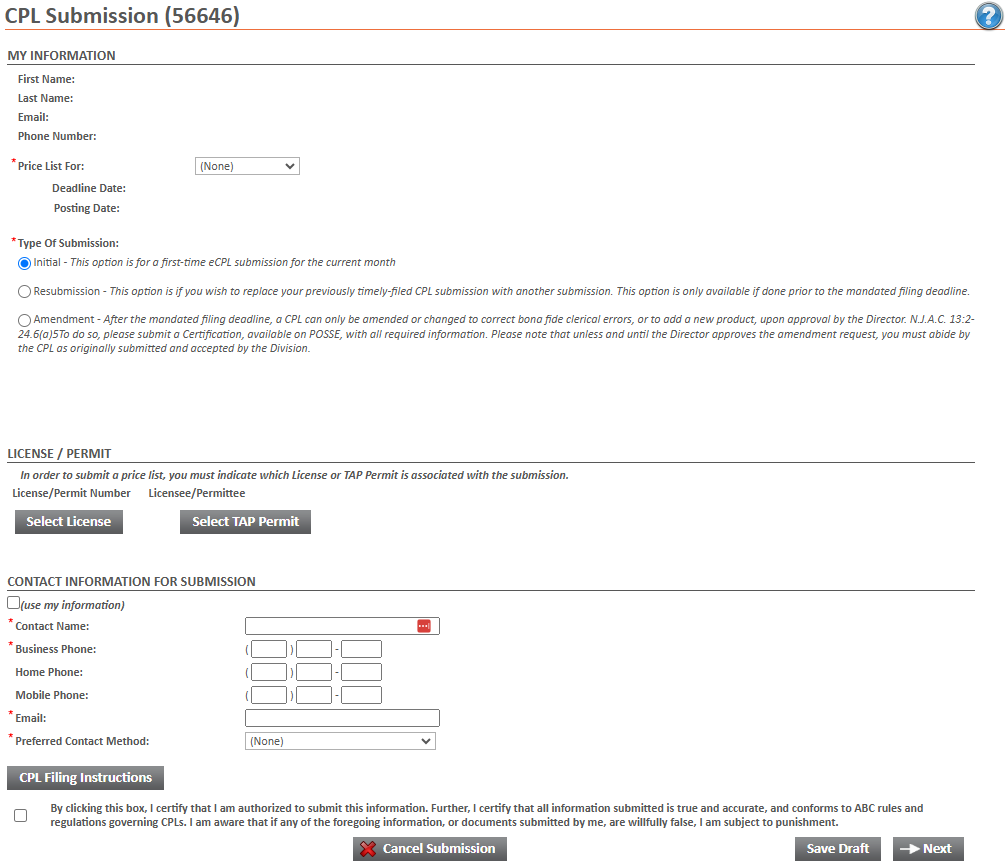
First select a Price List Period from the drop down at the top. Then select the Type Of Submission you wish to complete.
Click  or
or  to choose either a License or a Permit that you wish to associate with the submission.
Click the  button to download instructions on completing a CPL Submission
After you enter the required information, click the next button.
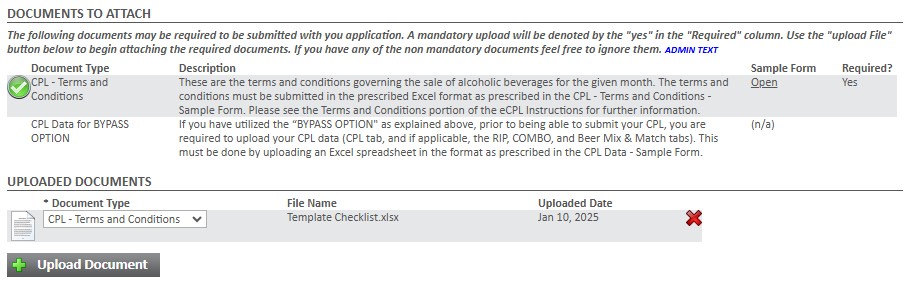
Upload documents then click the next button.
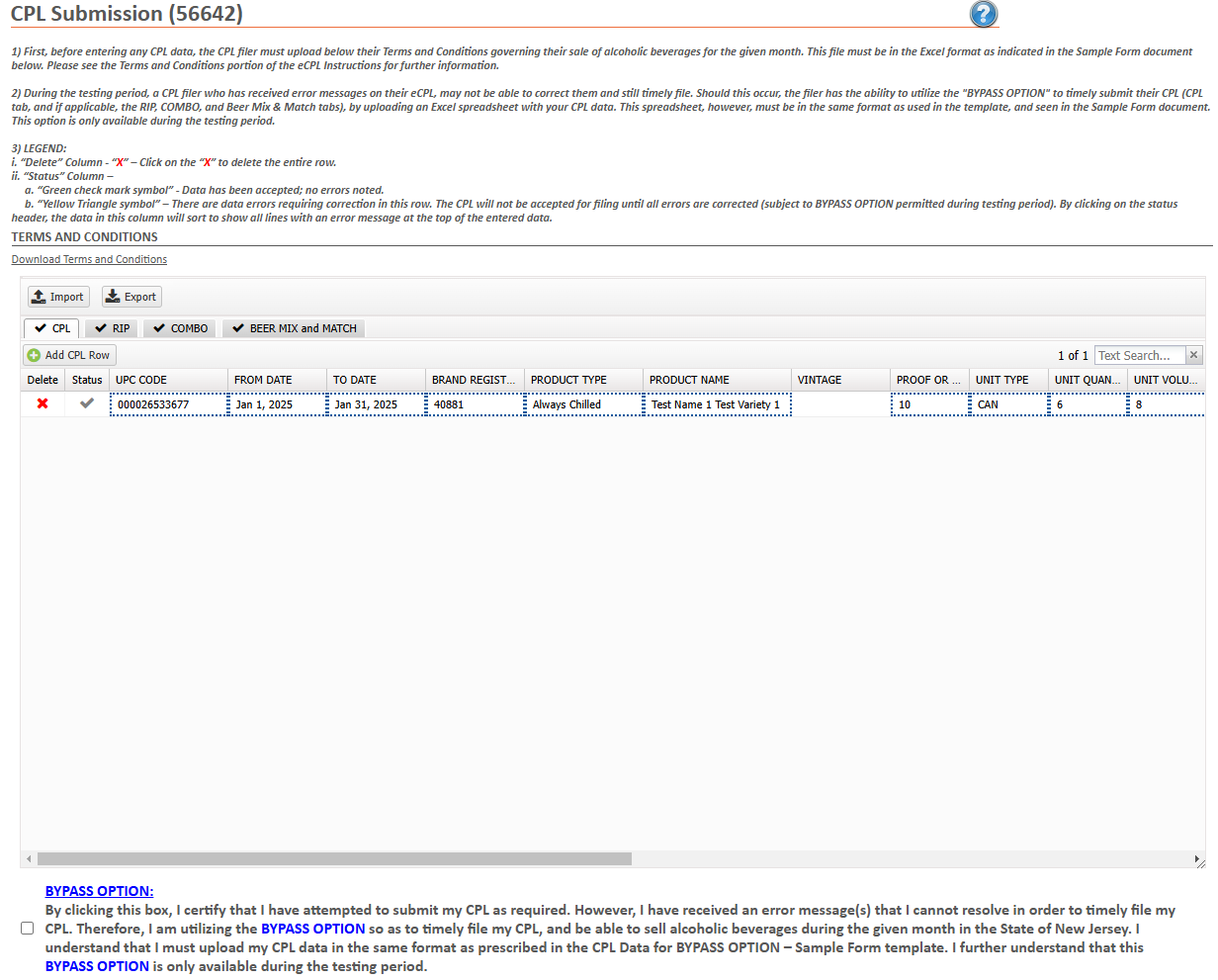
• |
Add CPL Row can be used to add a product size to the grid. New rows can be Removed by clicking on the red X. |
• |
Required fields will be marked with a red box. Rows with incomplete information will show an orange warning. Only editable fields will be required. |
• |
Edit a row by selecting a field and entering the information. Once the information as been entered, use the Update or Cancel buttons to save or discard the changes. |
CPL Export/Import
• |
Export can be used to download an excel spreadsheet of the product grid information. The Import must use the same file that was exported. |
|
• When adding Vintages, use a comma and space between years (an example being "1999, 2000, 2001") |

If there are any errors in your entry(ies) you will be presented with an Error screen.
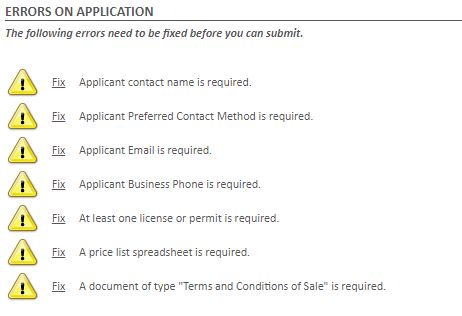
To fix the error(s), click on the underlined Fix. You will be taken back to the page with missing or wrong information where you can correct the error.
If there are no errors, you will be taken to the Submission page.
Payment and Submission
For more information on how to pay fees and submit the application for processing see the Payment page.
If there are no fees, acknowledge the disclaimer and press the Submit this price list button.
After the Application has been submitted a confirmation page will be shown.